Use IESDesk in Claude and ChatGPT
Add IESDesk to your chat app. Then ask for figures, comparisons, lighting scenes and metadata edits in the chat.
On this page
Before you start
- You need an IESDesk account. Sign up with your work email address if you do not have one.
- You need Claude or ChatGPT on the web, on the desktop app or on a phone.
- The address of the IESDesk connector is
https://iesdesk.com/mcp.
Add IESDesk to Claude
- In Claude, open Settings, then Connectors.
- Select Add custom connector. Type the name IESDesk and paste the address
https://iesdesk.com/mcp. - Select Connect. An IESDesk page opens. Sign in to IESDesk if it asks you.
- Read what IESDesk asks for, then select Allow. IESDesk sends you one email about the new connection.
If the menu of Claude looks different, follow the Claude help page on custom connectors. Anthropic keeps it up to date.
Add IESDesk to ChatGPT
- In ChatGPT, open Plugins, then select Add.
- Select Add custom MCP server. Type the name IESDesk and paste the address
https://iesdesk.com/mcp. - An IESDesk page opens. Sign in to IESDesk if it asks you.
- Read what IESDesk asks for, then select Allow. IESDesk sends you one email about the new connection.
Give a file to IESDesk
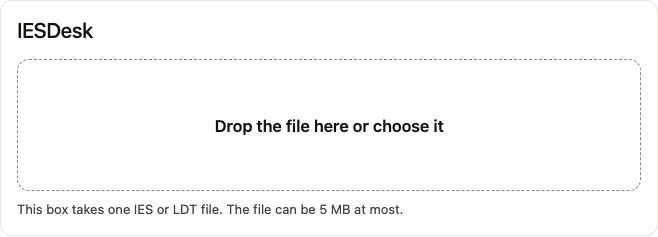
When IESDesk needs a file, a small IESDesk box shows in the chat. Drop the file or the folder in the box, or choose it. The box sends the file straight to IESDesk. The AI does not read or type the file, and it never sees the candela values.
IESDesk reads IES and LDT files. For an edit, you can drop a folder: the box leaves out the other files and names each one.
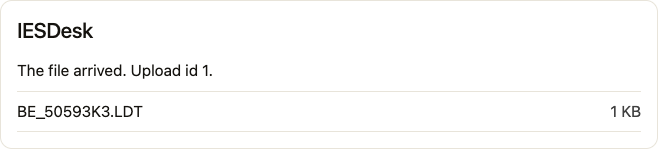
When the file has arrived, the box says so, and the chat goes on by itself.
What you can ask
View one file
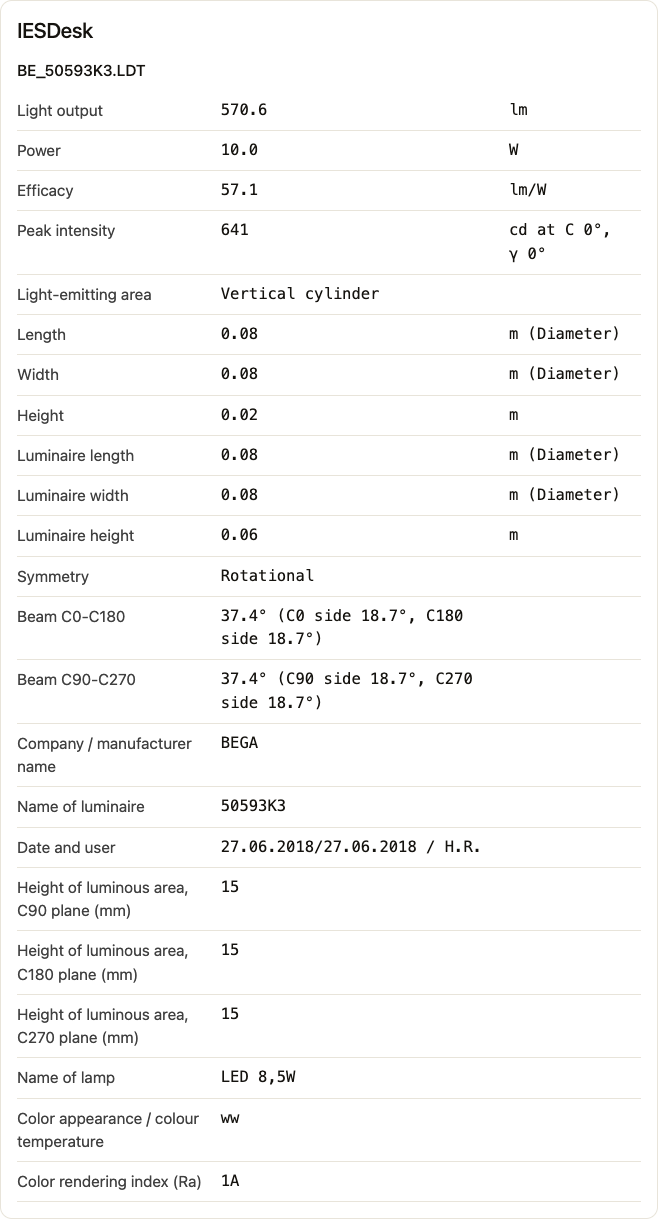
Reads one IES or LDT file and gives the figures of the View page: light output, power, efficacy, beam and the light-emitting area.
Example: Show me the figures of this downlight.
Compare files
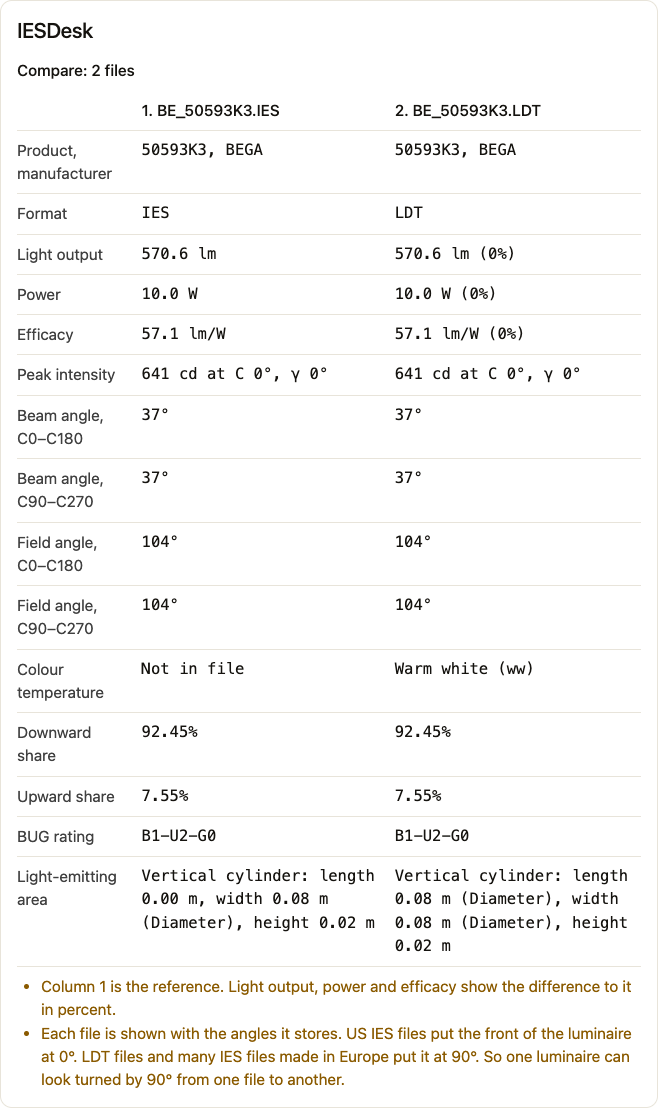
Shows 2 or 3 IES or LDT files side by side, with the figures of the Compare page.
Example: Compare these two files of the same luminaire.
Check a lighting scene
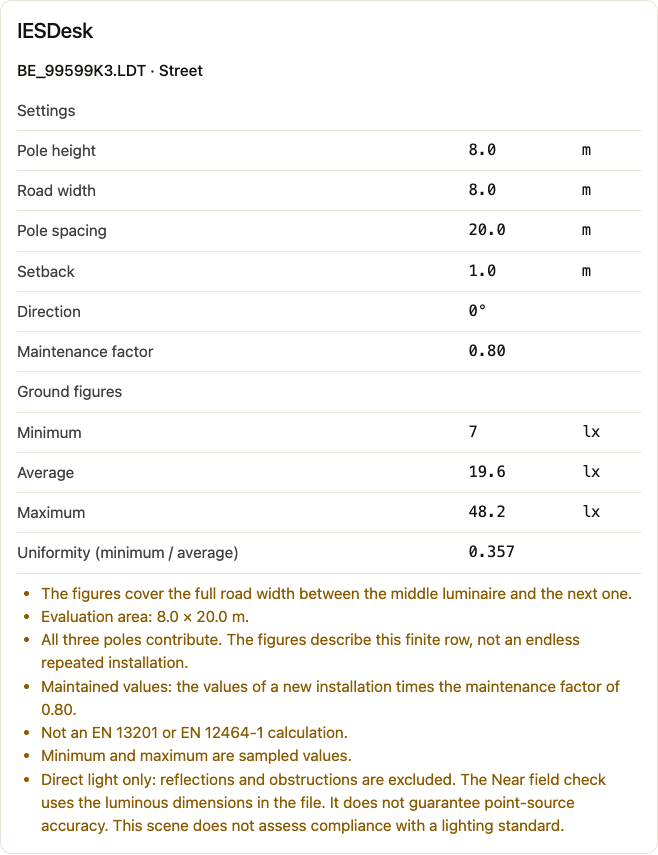
Calculates one file in one scene of the Lighting Scenes page: Open area, Street, Bollards, Room, Find an even layout, Corridor, Wall or Stairs. The answer links to the page with the same settings.
Example: Check this street light on 8 m poles, 20 m apart, along an 8 m road.
Edit metadata
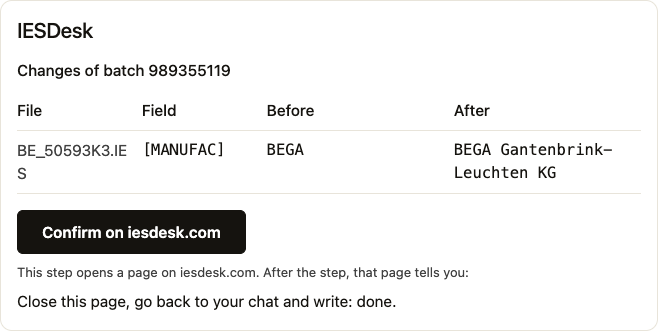
Changes metadata fields of many files, as the Edit page does: names, catalog numbers, lamp text, power, sizes and file names. You see every change in a table before you confirm. The light data of a file never changes.
Example: Set the manufacturer name to BEGA Gantenbrink-Leuchten KG in these files.
Each figure comes from the same calculation as the IESDesk page. A lighting scene gives an idea of the result. For a design that must meet a standard, check it in your lighting design software.
Changes need your Confirm
The view, compare and scene tools read your files and change nothing. An edit shows a table of every change first. Nothing changes until you confirm it on iesdesk.com. The AI cannot confirm for you.
- Select Confirm on iesdesk.com in the IESDesk box. A page of IESDesk opens. Sign in if it asks you to, with the account that you connected.
- Check the changes on the page, and select Confirm.
- Close the page, go back to your chat and write: done.
- IESDesk makes a ZIP file of the edited files, with the same checks as the Edit page. Select Download in the box to get it.
Your original files do not change.
Daily limit
Each view, comparison, scene and edit counts one check. A Free account can make 50 checks each day, and an Enterprise account 500. The day starts at midnight, Turkey time. When you reach the limit, the chat tells you, and you can continue the next day.
Disconnect
Open Account on IESDesk. In Connected apps, select Disconnect next to the chat app. The chat app then cannot use IESDesk until you connect it again.
The privacy notice says which data the connector uses.
If something goes wrong
- The chat shows no IESDesk box. The chat gives a link to an IESDesk page instead. Open it, sign in, and drop the file there.
- IESDesk no longer keeps the file. Ask the chat for a new IESDesk box, and drop the file again.
- The chat asks you to reconnect. Add IESDesk again with the steps above.
For other questions, contact IESDesk.