Compare luminaires
Put 2 or 3 IES or LDT files side by side, in the same scene and on the same scale. You need no account.
On this page
Choose the files
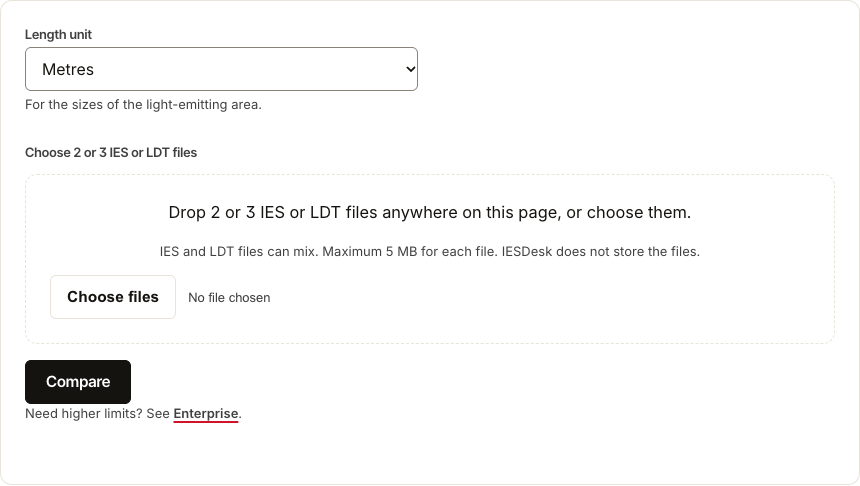
Open Tools, then Compare. Drop 2 or 3 IES or LDT files anywhere on the page, or choose them. The comparison starts at once. From a View page, Compare with other files brings that file along, so you choose only the others.
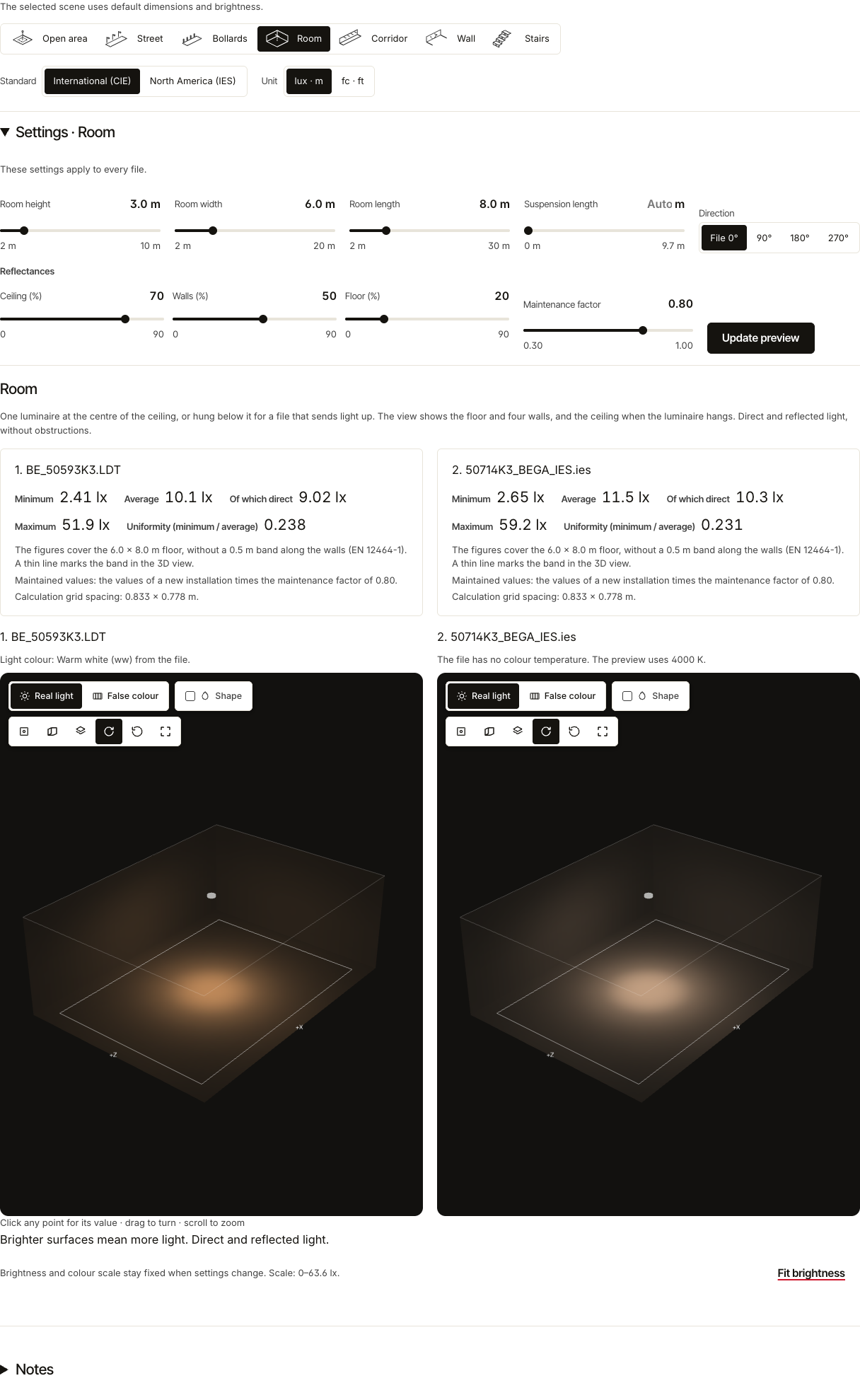
Scene
Every file lights the same scene with the same settings and one brightness scale, so the pictures compare fairly. The Standard, International or North America, and the Unit sit next to the scene choices and apply at once. Change the other settings, then select Update preview. Fit brightness sets the scale again. The buttons on a scene, such as False colour or Isolux, change every scene at once, and the cameras move together. A scene gives an idea: Room and Corridor count the light that the empty room reflects, and the other scenes count the direct light only.
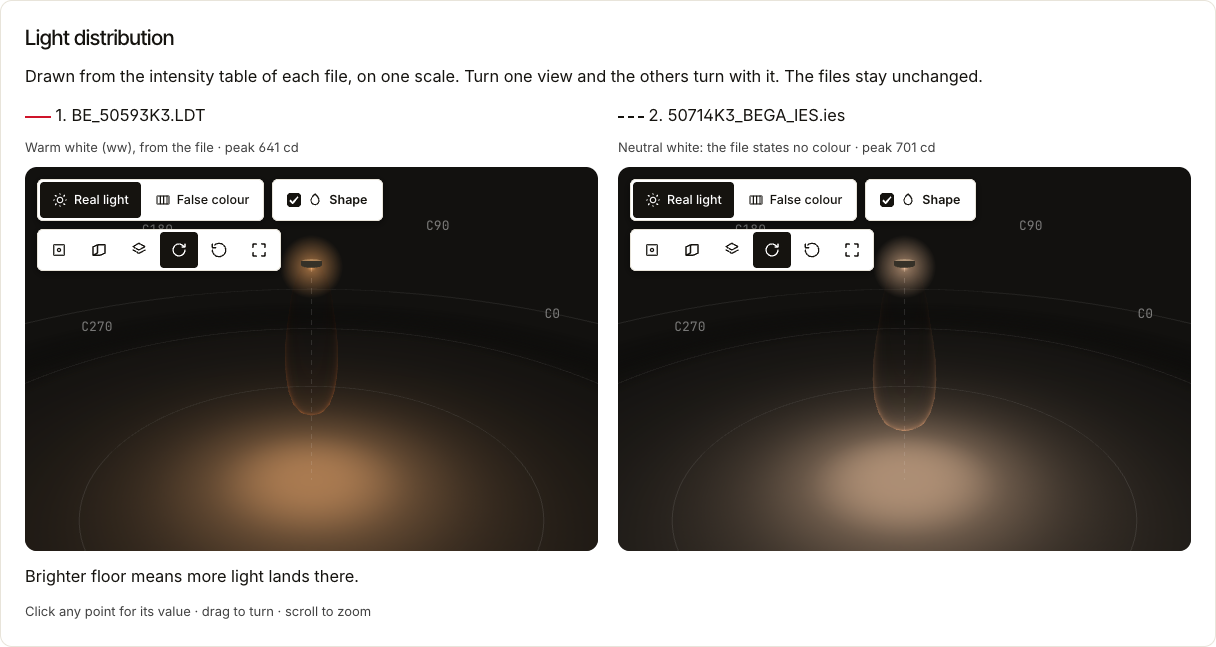
Light distribution
One 3D view for each file, on one scale. Turn one, and the others turn with it.
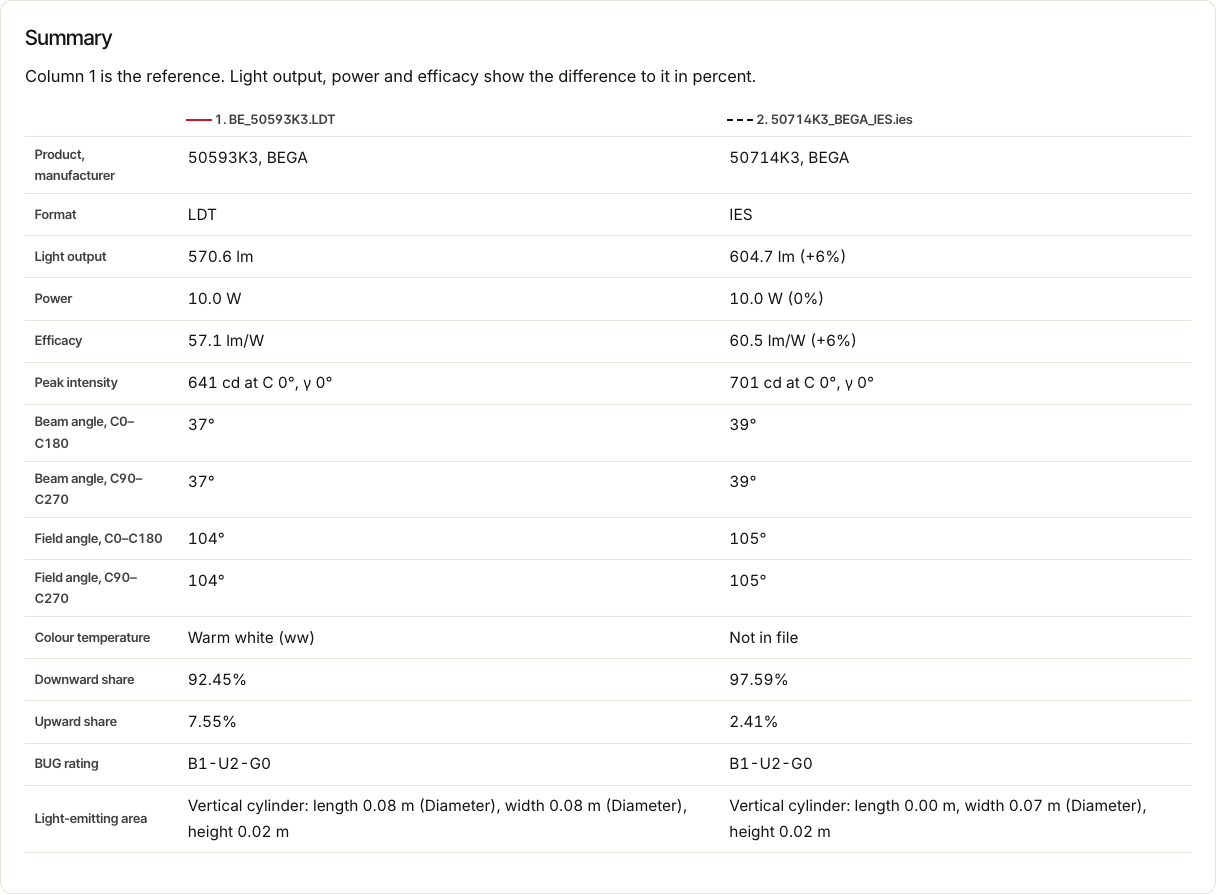
Summary and Diagrams
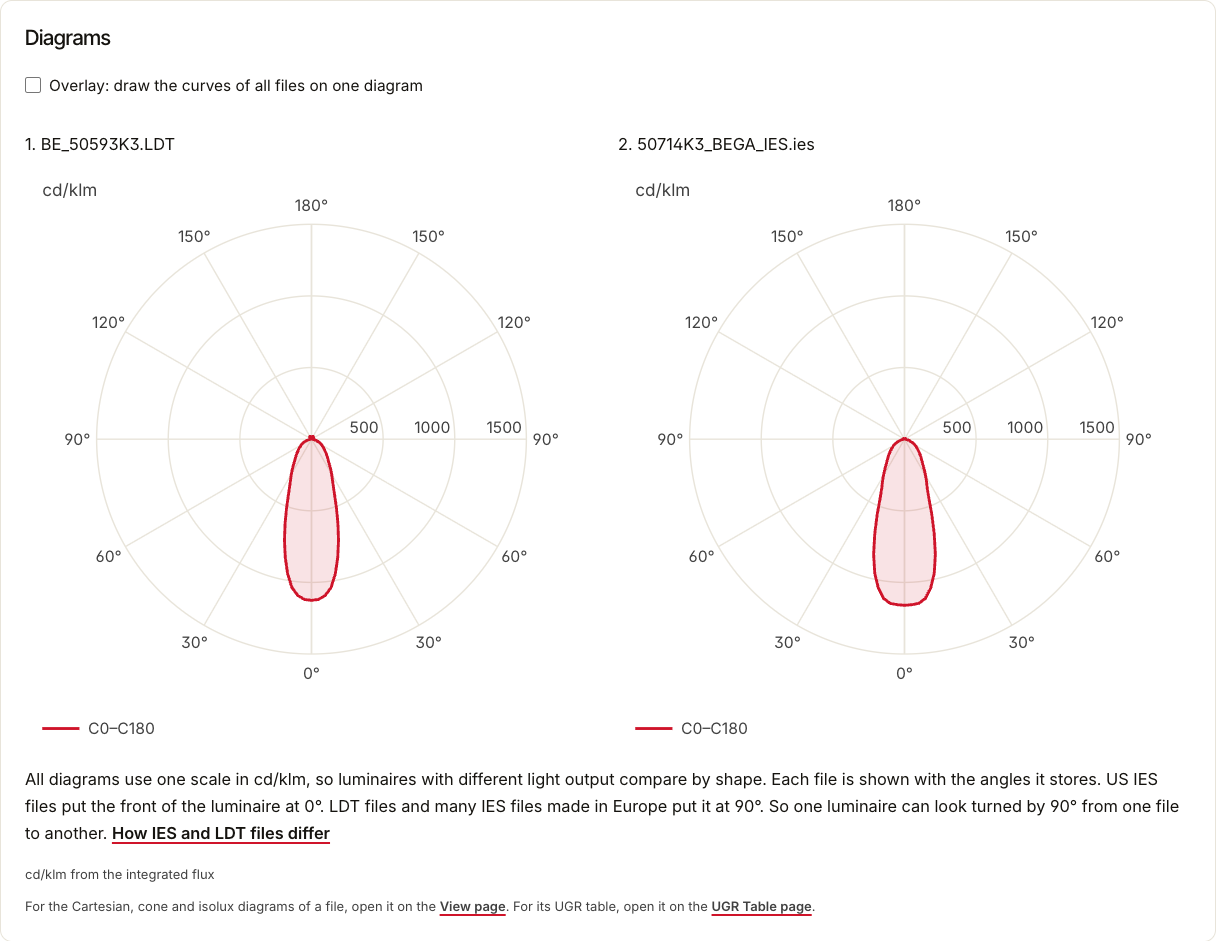
Summary holds the key figures of each file in one table, and Diagrams their polar curves on one frame. Each file shows with the angles it stores; IESDesk does not turn or mirror a file.
Keep the comparison
Signed in, you keep the comparison in Your files. When the result shows Save to Your files, select it; otherwise IESDesk saves the comparison by itself. The files stay in Your files for 30 days; the names and figures stay after that. Compare other files starts again.
Where your files go
Compare reads your files in your browser where it can, and sends our server only the results to draw the page. When the browser cannot read a file, the page sends the files to our server, which reads them. IESDesk keeps a copy only of a comparison in Your files. The privacy notice has the details.