Draw diagrams
Draw the polar, Cartesian, cone and isolux diagrams of IES and LDT files. One file needs no account; many files need a free account.
On this page
One file
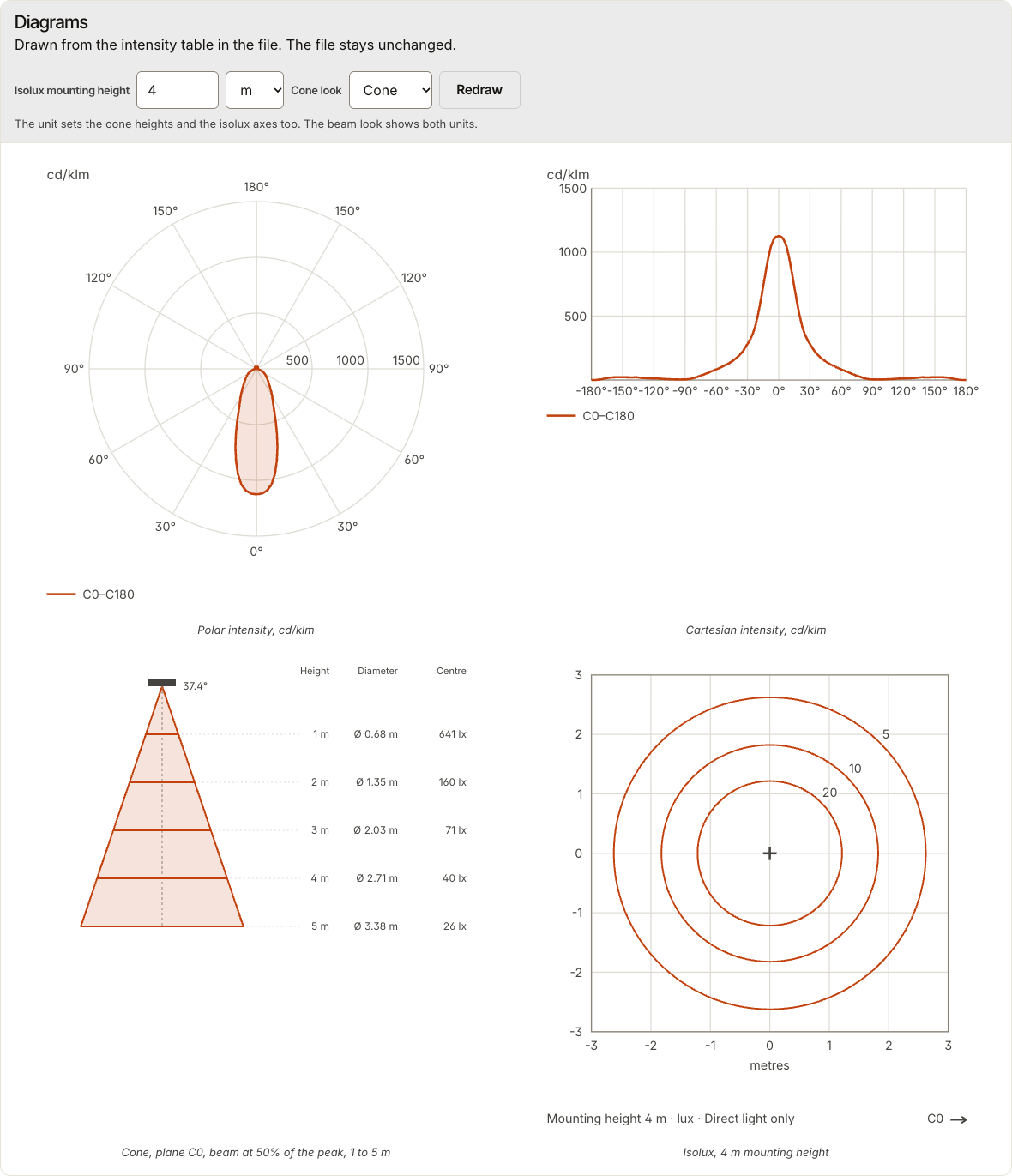
Open Tools, then Diagrams under Free tools. Drop one IES or LDT file, or choose it with Draw diagrams. The page shows the four diagrams of the file.
Set the Isolux mounting height of the isolux diagram and the Cone look, then select Redraw. See the metadata in IES View, or LDT View, opens the same file in View.
Many files
Sign in, open Tools, then Diagrams under Free account. Drop up to 100 files or a folder, then select Upload and continue. IES files and LDT files each get their own job.
Choose the Diagram kinds, the Output formats (SVG, PNG or JPG) and the Theme. A free account draws the Minimal theme. Select Check names to see the names of the diagram files, then Start job.
Get the ZIP
You can leave the page while the job runs. Tick Email me when the diagrams are ready to get one email at the end. When the job is done, select Download ZIP.
Where your files go
For one file, IESDesk keeps no copy, and the file stays unchanged. For many files, the files and the ZIP stay in Your files for 30 days, and you can delete them earlier. The privacy notice has the details.