ULOR
Calculate the upward light output ratio of IES and LDT files. One file needs no account; many files give one CSV with a free account.
On this page
One file
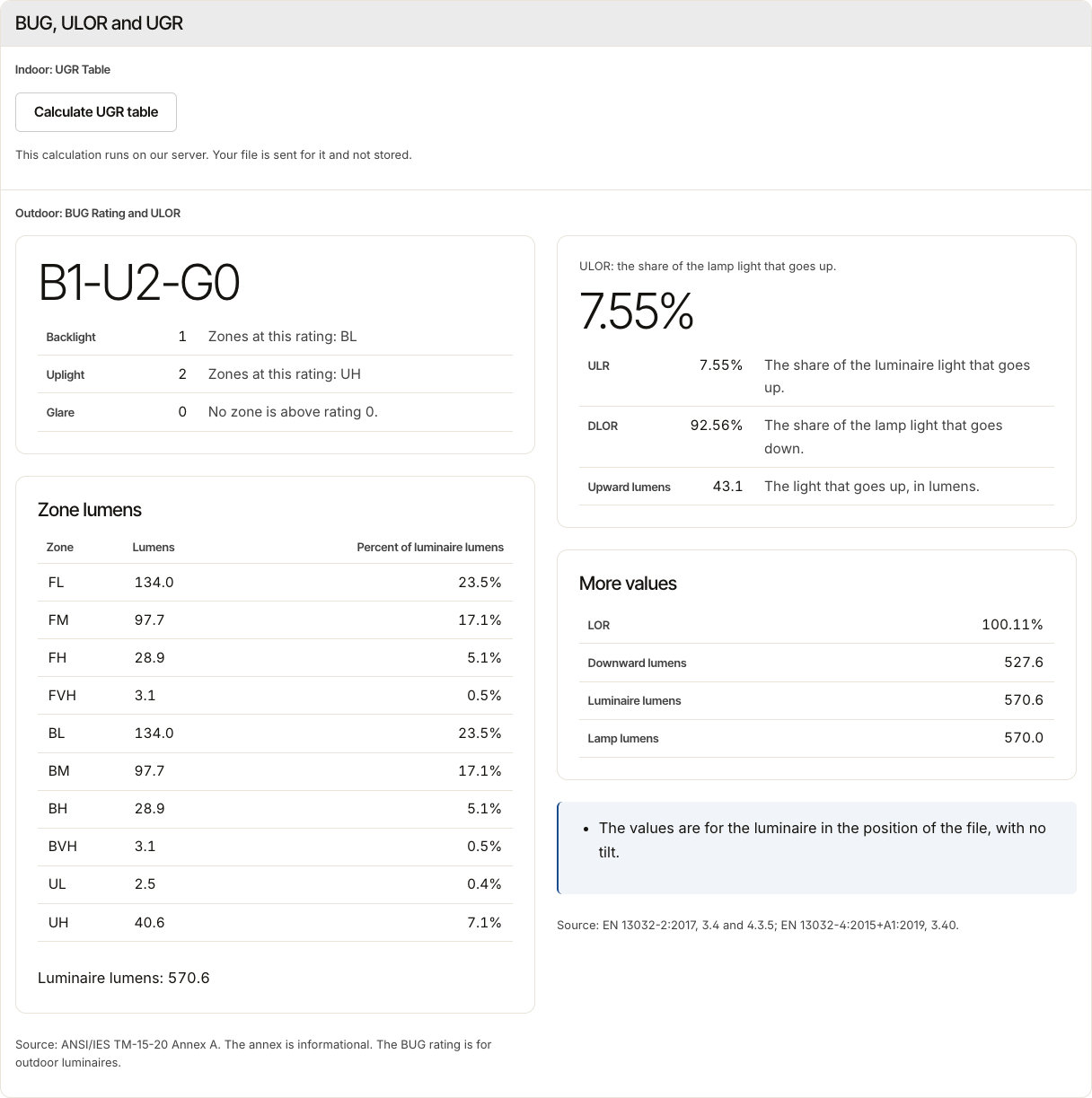
Open Tools, then ULOR under Free tools. Drop one IES or LDT file, then select Calculate. The file opens in View, at BUG, ULOR and UGR.
Read the result
ULOR is the share of the lamp light that goes up. The page also gives ULR, DLOR and the upward lumens. More values adds LOR and the luminaire and lamp lumens.
Many files
Sign in, open Tools, then ULOR under Free account. Drop the files, then select Calculate ULOR. When the job is done, select Download CSV: one row for each file.
All metrics in one CSV
- Open Your files. Select Metrics CSV, then New job.
- Choose IES or LDT files, then select Create CSV.
- Wait for the job to finish. Select Download CSV.
Each file has one row. The file_name column identifies it. Missing values stay empty.
The CSV includes BUG, LCS zone lumens, total lumens, efficacy, efficiency, uplight ratios, beam and field angles, NEMA and road types.
The upward waste light ratio is a fraction. ULOR and ULR are percentages.
IESDesk deletes each uploaded copy after it processes the file. The CSV stays in Your files for 30 days.
Where your files go
One file goes to View, which keeps no copy of it. For many files, IESDesk deletes each file once it is calculated, and the CSV stays in Your files for 30 days. The privacy notice has the details.