View an IES or LDT file
Open one file and see its figures, diagrams, 3D light and a lighting scene on one page. You need no account.
On this page
Open a file
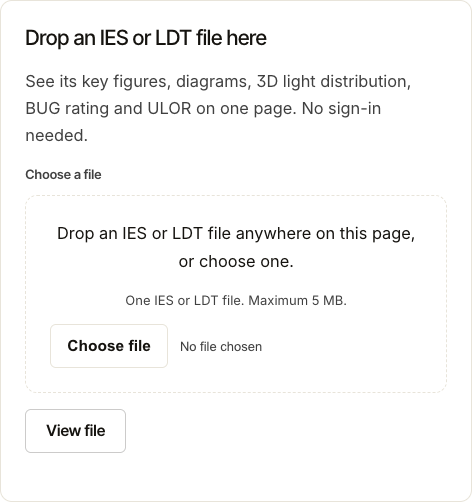
Drop one IES or LDT file in the box on the home page, or open Tools, then View. The file can be up to 5 MB. The page opens as soon as the file arrives.
Find your way
The strip under the top menu links each part of the page: Scene, Light distribution, Summary, Diagrams, BUG, ULOR and UGR and Metadata. It stays in view while you scroll, and a red line marks the part you are reading.

See the light in a scene
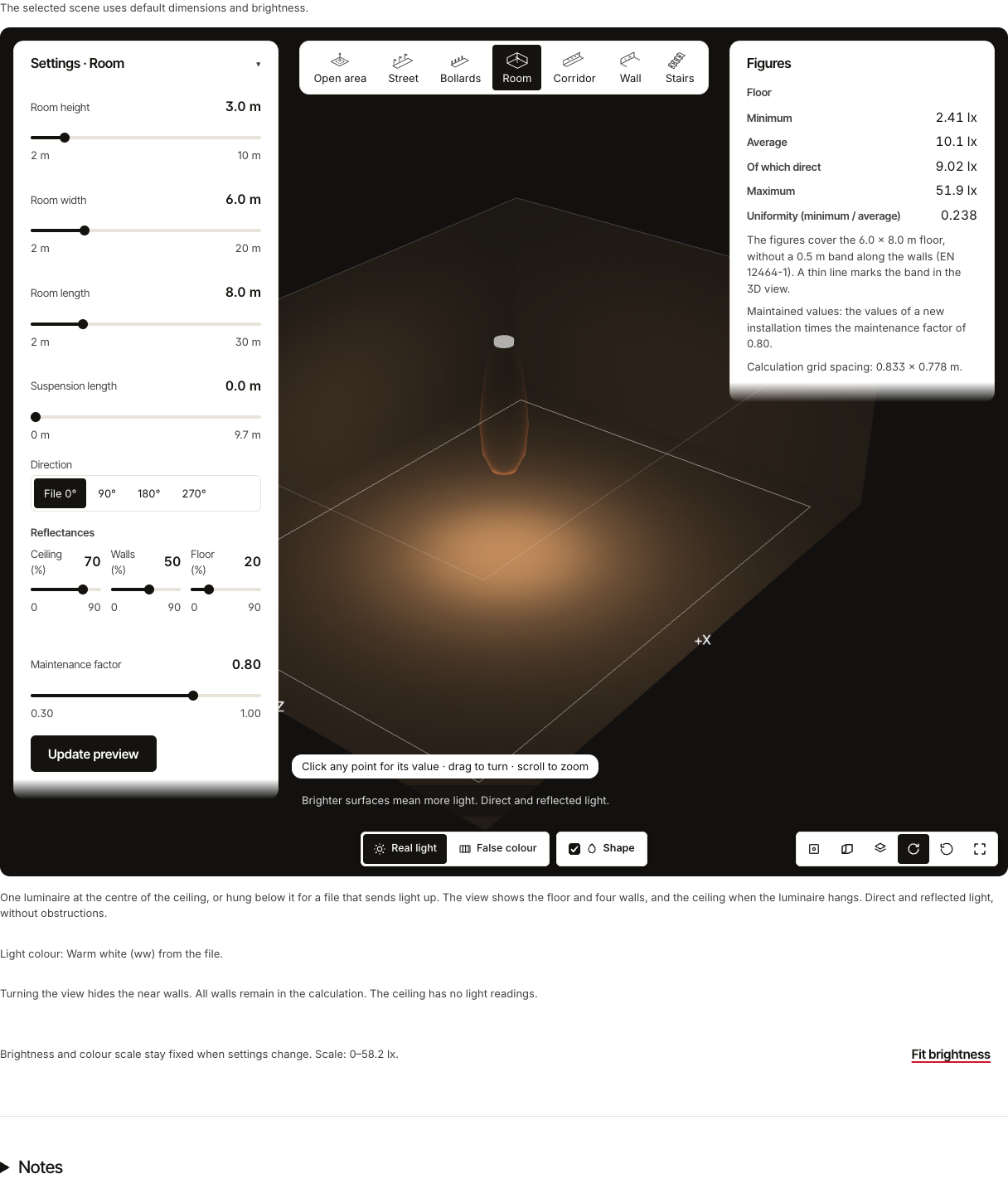
The page opens with the file in a scene, with the shape of the light, the isolux lines and the grid on: Open area, or Room for a file that sends most of its light up. When the product description names a scene, the page opens in that scene. Choose another in the row at the top: Open area, Street, Bollards, Room, Corridor, Wall or Stairs. The scene works as in the Lighting Scenes guide: from 1280 pixels wide it fills the screen, with the settings on the left and the figures on the right. The picture often follows a change by itself; when the page shows Update preview, select it.
A scene gives an idea of the light. For a design that must meet a standard, check it in your lighting design software.
Read the figures
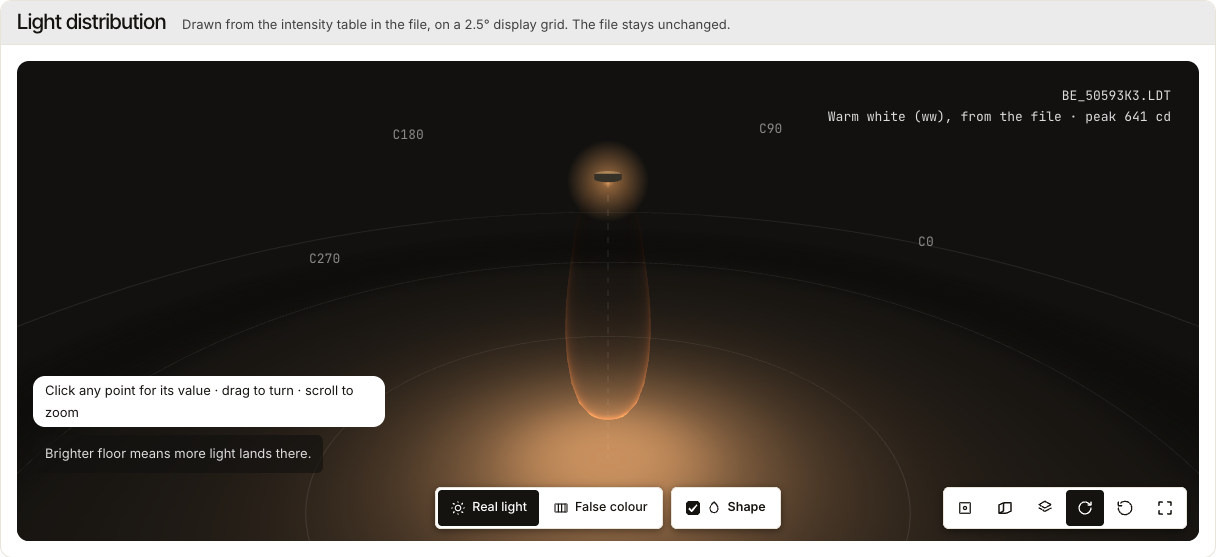
Light distribution shows the light of the file in 3D, which you can turn. Summary gives the light output, the power, the efficacy, the peak intensity, the beam, the light-emitting area and the symmetry.
Diagrams
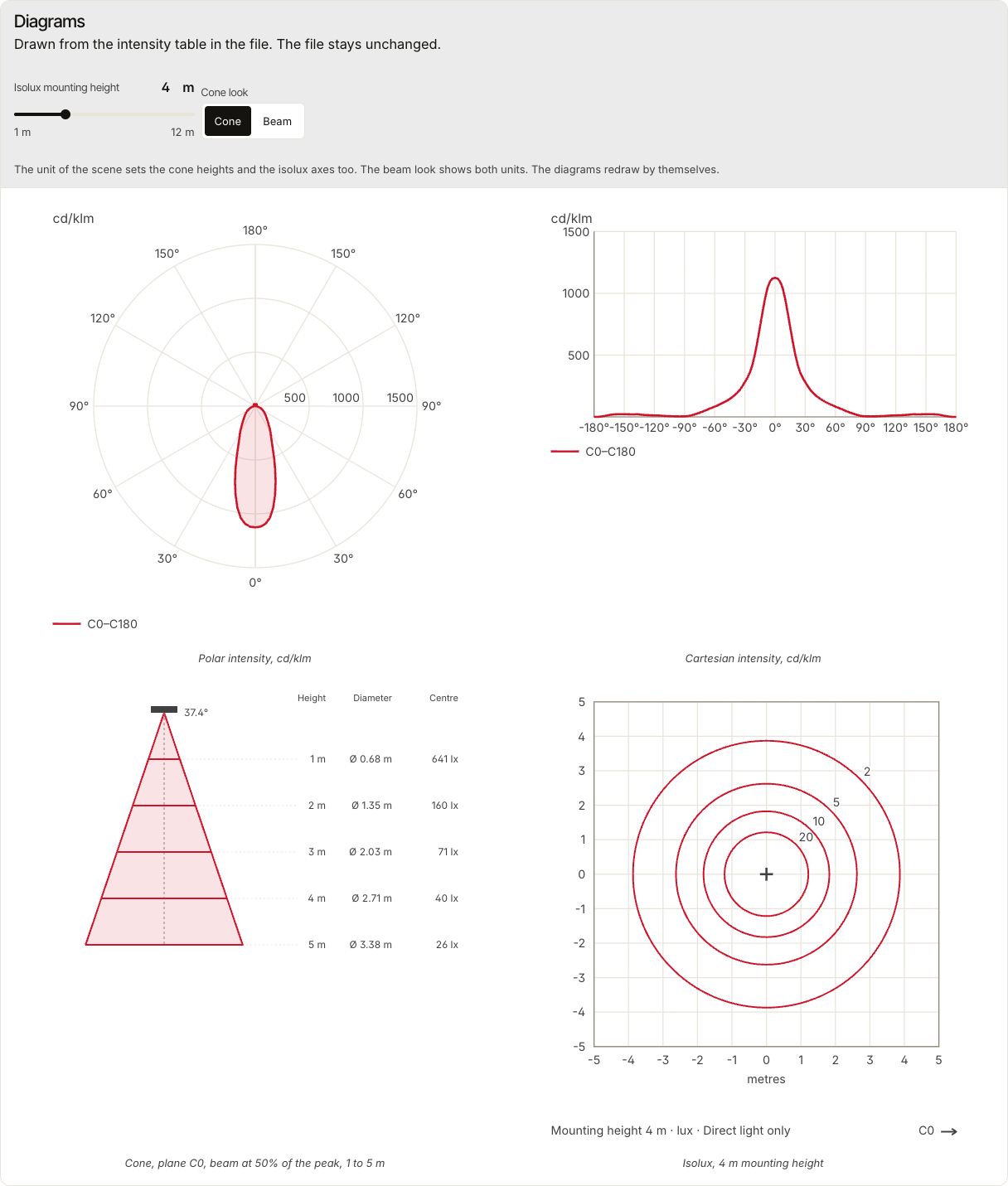
The page draws four diagrams from the file: polar, Cartesian, cone and isolux. Set the Isolux mounting height with its slider or type it, and choose the Cone look: the diagrams redraw by themselves. Learn explains how to read each diagram.
BUG, ULOR and UGR
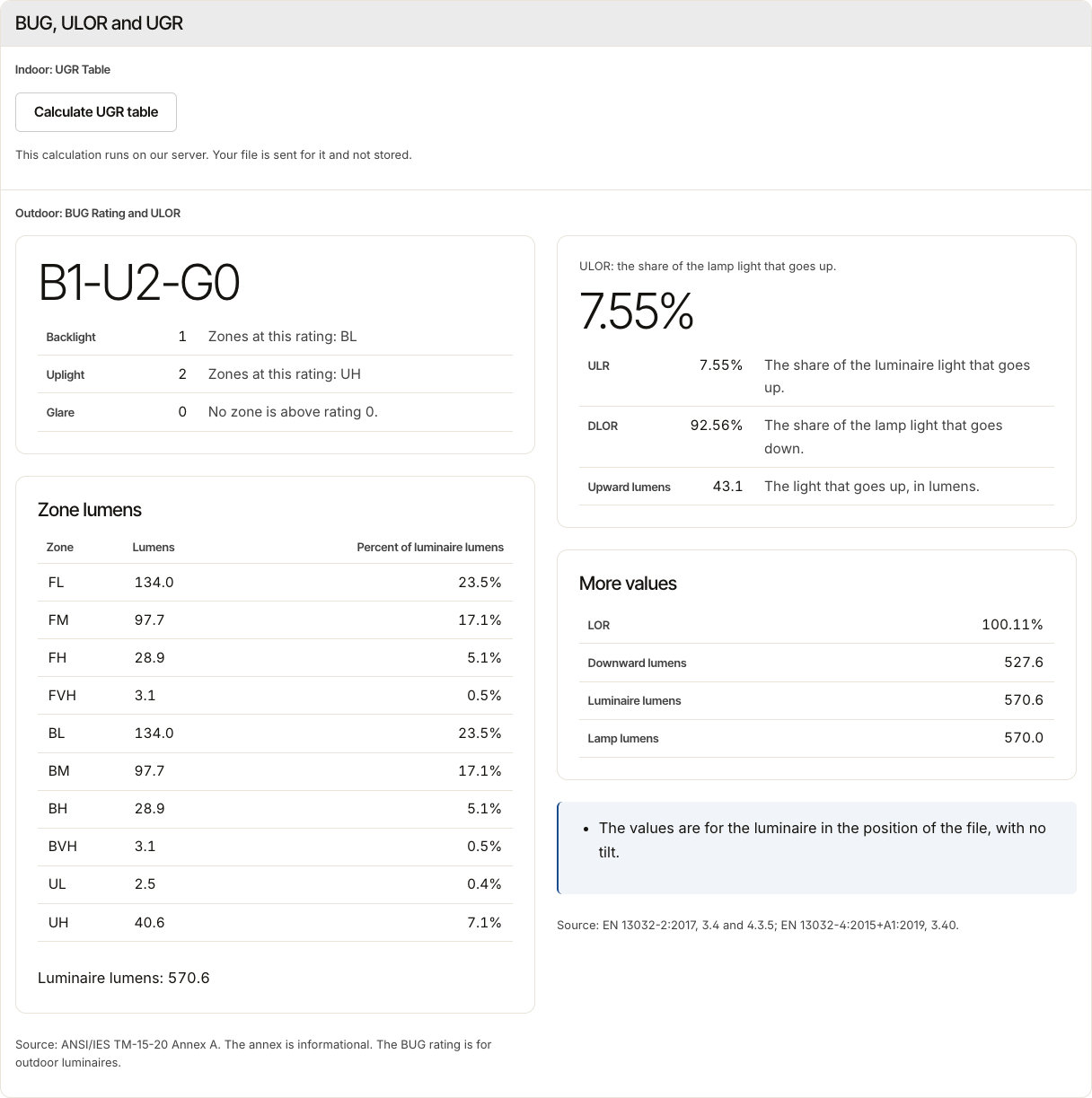
The outdoor half gives the BUG rating and the ULOR of the file, in a table with one row for each figure. For the indoor UGR table, select Calculate UGR table. The section starts with the UGR half, unless the product description names an outdoor scene.
Metadata
The last part lists each text field of the file. Each field name links to its Learn page.
Next steps
At the top of the page, Compare with other files takes this file to Compare, and Report sheet takes it to the Report page. View another file opens a new file.
Where your file goes
View reads your file in your browser where it can, and sends our server only the results to draw the page. When the browser cannot read a file, the page sends the file to our server, which reads it. In both cases IESDesk keeps no copy of the file, and the file stays unchanged. The privacy notice has the details.